

If you haven't looked at how Webtrotion has improved this year, then you should first check  Webtrotion 2.0: Footnotes, Citations, and JSON5 Config out, which is a release that adds citations and footnotes to Webtrotion.
If you are here without knowing what Webtrotion is, you should see  Introducing Webtrotion.
Webtrotion 2.3 adds multiple author support with dedicated author pages and custom bios, lets you pull content straight from GitHub repos while keeping Notion as the metadata source, adds gallery layouts for visual post listings, exports clean Markdown files with a floating copy button, and turns cover images into hero backgrounds. The External URL property now does two things: link-out posts (send readers to an external article while keeping your Notion metadata) and GitHub-sourced content (write in your repo, render on your site).

If you're struggling with the new configuration keys, you can use Webtrotion 2.x Config GeneratorExternal link which I created, so that you can copy the generated code, and use it directly in your github repo.
I spent the past four weeks with LLM coding assistants shipping five new features, mostly because I finally sat down and decided to just get them done. Multiple author support is something I wanted for potential guest posts and collaborative blogs down the line, external content (especially custom components) from GitHub was something I wanted for my own playable interfaces (like LLM chat components), gallery layouts make visual content work better (and hopefully is used by someone), copy as markdown is for the LLM era where I'm pasting posts into Claude and ChatGPT all the time anyway, and cover backgrounds finally make those Notion cover images do something useful instead of just sitting there being read in Webtrotion but never used.
Some of these were harder than they looked (OG images for author pages, ugh, that was an interesting hassle to complete), and some were easier, like cover backgrounds took maybe an hour [a]
Most of these plans were drafted using Claude Code with a mixture of Opus 4.5 and Sonnet 4.5. I initially had them drafted by GPT 5.2 on Codex, but they weren't as good, so I modified them (and used Claude Code for that too!). The initial implementation was always done by Claude Code again with a mixture of Sonnet and Opus on the 4.5 series, and then fixes were done by Codex with the GPT 5.1 codex model on medium thinking as well as with Gemini Pro 3.0. The biggest reason why I preferred Codex over Gemini is it's really hard to control Gemini to not make edits to things, and I wish either Codex or Gemini shipped with a plan-only mode like Claude Code has, because why do they keep making edits to things without being asked? I realized that if I have a new feature in mind, the best way to get started is always Claude Code for me, for some reason.
Multiple Author Support
I went back and forth on how to implement this. The obvious approach was to make a separate Authors database and use Notion's relation property to link posts to authors, which would give maximum flexibility (each author could have a full page with custom layout, rich content, whatever), but it also means asking users to create a second database, get another database ID, manage relations, and I'd have to parse two data sources during the build, which just felt like too much complexity for what's essentially a guest post feature.
I also considered using a rich text property where people could just type names and color/link them however they want, but then I'd have to parse arbitrary text to extract author names, and building individual author pages from that would be a nightmare because how do you even tell where one author name ends and another begins if someone decides to get creative with their formatting.
So I went with a multi-select property, which is simple (add an Authors multi-select to your database, create options for each author, and assign them to posts), and you lose some flexibility in how author pages look, but honestly? Author pages aren't that important, this feature is mostly for guest posts anyway, so keeping it simple made more sense than building out this whole elaborate author management system that maybe three people would use.
// <<shiki-transform>>
// constants-config.json5
{
  // === Site Information ===
  // Basic details about your website used for metadata, RSS feeds, and SEO.
  "site-info": {
    // Your name or the name of your site's author.
    author: "Your Name",
    // Your custom domain name (e.g., "example.com"). Do NOT include "https://" or trailing slash.
    "custom-domain": "",
    // The sub-directory your site is deployed in (e.g., "/blog"). Leave empty if at root.
    "base-path": "",

    // === Multi-Author Support ===
    // If the Authors property doesn't exist in your Notion database, settings below are ignored.
    // Personal URL for the site's author (from "author" field above).
    // Leave blank to link to author page (if enabled) or show as plain text.
    "site-author-url": "",
    // Avatar/photo URL for the site's author.
    "site-author-photo": "",

    // Configure author handling for posts with a multi-select Authors property in Notion.
    // When a post's Authors property is empty, the site's author (above) is used as fallback.
    authors: {
      // If true, builds /authors/ index and /authors/[author]/ pages.
      "enable-author-pages": true,
      // If true, only show bylines and build author pages when at least one post has a non-default author.
      "only-when-custom-authors": true,
    },
  },
}
How Author Pages Work
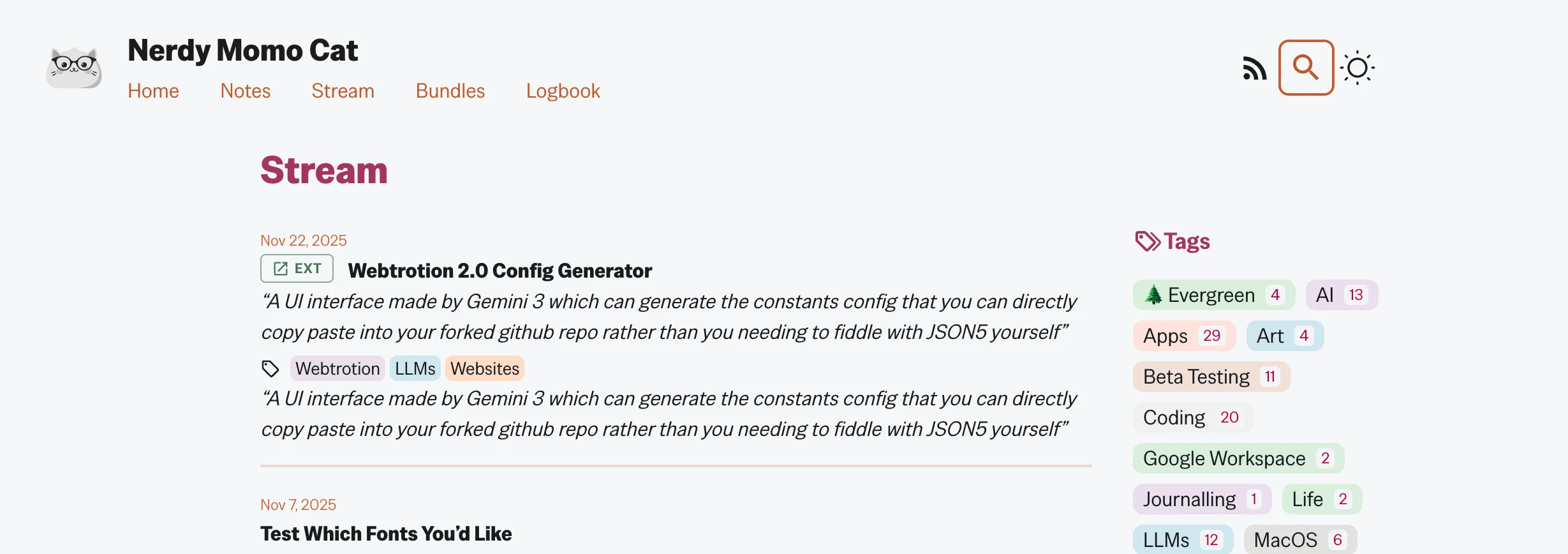
Set "enable-author-pages": true under site-info → authors in constants-config.json5, and Webtrotion builds an /authors/ index page listing all authors who have written posts, plus individual /authors/[author]/ pages for each author, showing their bio, photo, and all their posts. The author page layout is similar to tag pages, with the addition of author image on the left, name on right with post count, description on bottom [b]<<author-url>> delimiter on both ends of the url, the photo using <<author-photo-url>> on both ends of the image url, and treats any remaining text as the author description
If author pages are enabled, they also generate OG images, which was an interesting project and hassle to complete, which I did. The OG image generation pulls the author photo if you provided one and uses a two-column layout with the photo and description, similar to how the actual author page is structured.
If you set "only-when-custom-authors": true, bylines and author pages only appear when at least one post has a non-default author, so when all posts use the site author, the feature stays hidden (clean and minimal for solo blogs that don't need all this author attribution stuff).
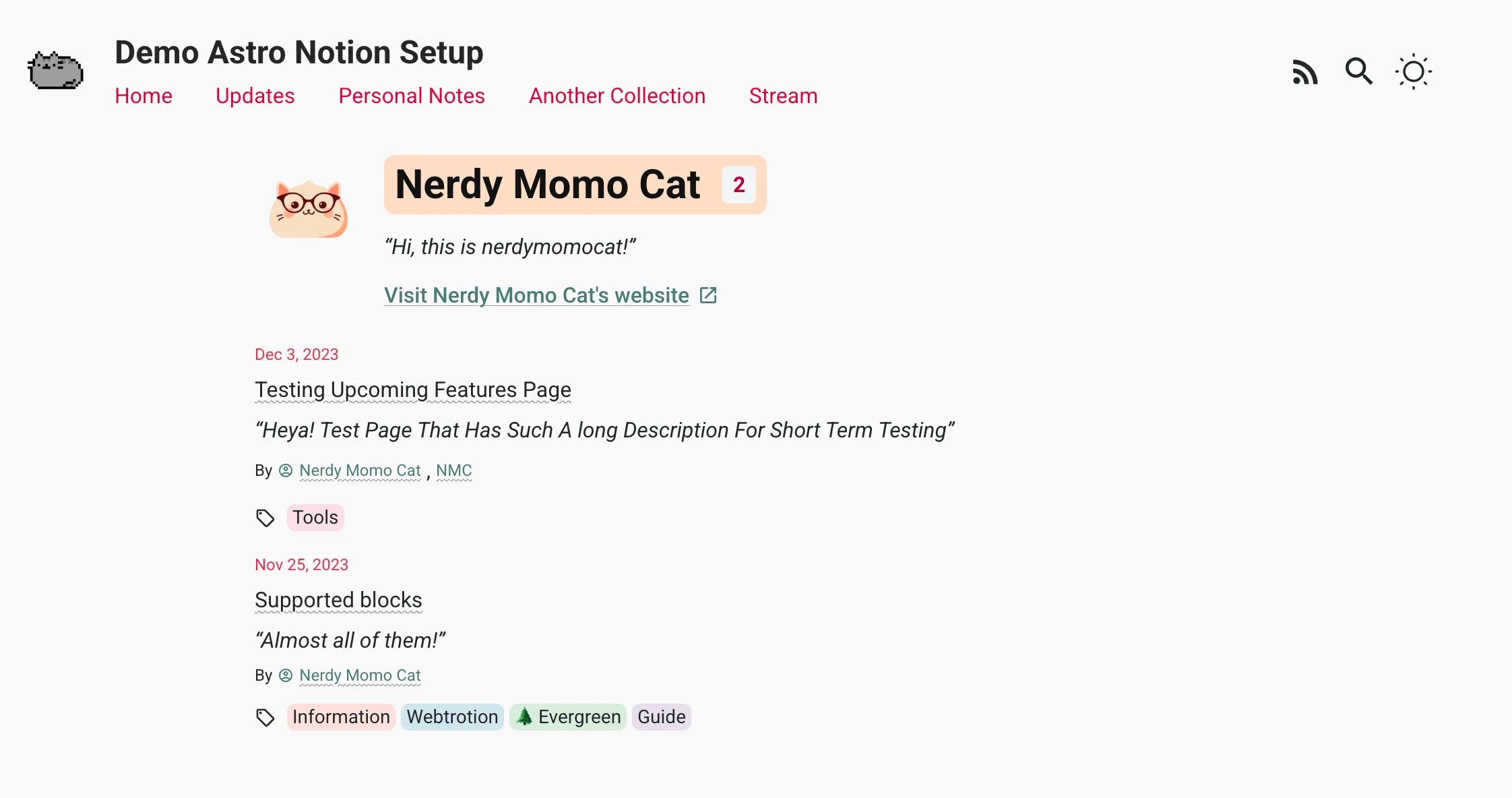
author-photo-url associated with itAuthor Bios and Photos
In your Notion database, edit the Authors multi-select property and add descriptions to individual author options, using shortcodes to specify URLs and photos like this:
 <<author-url>>https://example.com<<author-url>>
 <<author-photo-url>>https://example.com/photo.jpg<<author-photo-url>>
 Author description text goes here.
For the site author (the one specified in site-info → author in your config), use site-author-url and site-author-photo in your config instead of the shortcode system, because the site author isn't part of the multi-select, they're the fallback.

Bylines
Bylines now show "By [Author Name]" in post listings, stream views, and hero sections, and the logic works like this: if you don't have an Authors property on your database because you're still using an older version, it always uses the site author from your config; if you have the Authors property but it's empty on a post, it falls back to the site author; and if the Authors property has values, it uses only those authors, ignoring the site author completely.
If an author has an external URL (set via the shortcode in the multi-select description), you'll see a little icon in the byline that links out, and clicking the author name takes you to their author page if enabled, or on the author page itself, if there's an external URL, you'll see a "Visit my website" button, which is good for guest posts where authors want to link back to their own site and get a backlink from here.
![The above example renders this byline [^ft_bylineexplanationicon] in the listing.](/_astro/image.3bCdCFdB_1pllP8.webp)
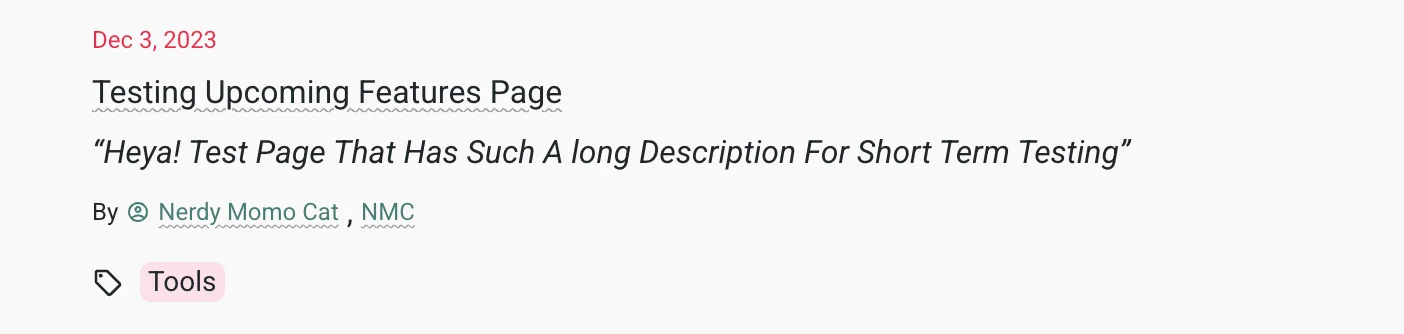
Image Format Conversion
Satori, which is the library used for OG image generation, only accepts JPG, JPEG, or PNG, so originally if your featured image or author photo wasn't one of those formats, I just ignored it and you'd get a broken OG image or no image at all, but now I try to use Sharp to convert it to PNG first, so if you link to a WebP or AVIF or whatever, it downloads it, converts it, and uses it, allowing more flexibility and fewer edge cases where OG images just don't generate.
External Content
The External URL property is new in 2.3, and it does two things depending on what URL you give it.
If the External URL matches one of the GitHub folder prefixes you configured in external-content → sources, Webtrotion treats it as content to import. It downloads the files from that GitHub folder during the build, rewrites all the asset paths, and renders everything with the same typography, popovers, margin notes, cite-this sections you'd get with native Notion content. This works for any Markdown/MDX/HTML you have in a repo, for example Jupyter notebook outputs, R Markdown docs etc.
If the External URL doesn't match any of those folder prefixes, Webtrotion treats it as a link-out post. It still renders your Notion metadata (excerpt, tags, publish date, everything) in listings and on the post page, but clicking the post preview opens that external URL in a new tab instead of rendering your post content. Perfect for "I wrote this elsewhere" or "I was on this podcast" announcements where you want the post to show up on your site but the actual content lives somewhere else.
// === External Content ===
// URL prefixes that tell the site to fetch GitHub content and render it locally.
// Add public *parent* GitHub folder/file URLs (/tree/... or /blob/...) used in Notion's "External URL" field.
// Each External URL in Notion should point to a post folder inside one of those parents.
// If it matches a prefix, the build downloads and renders it as internal Markdown/MDX/HTML.
"external-content": {
  // Toggle external content pulled from remote sources via Notion's "External URL" field. Must be true to use features below.
  enabled: false,
  // Remote folders containing external content files.
  sources: {
    // Each subfolder is treated as a markdown post. Supports media, styled using corresponding Notion blocks.
    // Example: github.com/yourname/repo/tree/main/markdown
    markdown: "",
    // Each subfolder is treated as an MDX post. Supports custom components/media, lightly Notion-styled.
    // Example: github.com/yourname/repo/tree/main/mdx
    mdx: "",
    // Each subfolder is treated as an HTML post. Supports assets, no styling applied.
    // Example: github.com/yourname/repo/tree/main/html
    html: "",
  },
  // Remote component folders MDX can import from (downloaded to src/external-content/custom-components).
  // Also usable for markdown codeblocks via `mdx-inject` shortcode above; supports media, no styling applied.
  "custom-components": "",
}
Link-Out Posts
If you want your "Now" or "Linklog" collection to send people to an external article, you can set External URL to that destination (YouTube, another blog, a PDF, whatever), and Webtrotion still renders the Notion excerpt, tags, publish date, even comments count in listings, but clicking the preview opens the external link in a new tab instead of rendering your post.
If you already use Webtrotion, make sure your database has a URL property literally named External URL (reuse it for everything external and you're done, no need to create multiple properties for different use cases of External Content).
Pulling Content from GitHub Repos
Create a folder for each post (like markdown/my-post/) under those repo paths, drop your index.md or index.mdx or index.html plus any media inside that folder, then link your Notion page's External URL to that folder URL, and at build time (and in astro dev too, so local preview works), Webtrotion hits the GitHub Tree API, copies anything under those folders into src/external-posts/<folder>, mirrors assets under public/external-posts/<folder>, and writes a short hash as the cache key so if nothing changed, we skip the redownload and you don't waste time refetching stuff that's already there.
The frontmatter still comes from Notion (title, excerpt, tags, publish date), so your listings stay consistent even though the body comes from GitHub, which means you can have content living in multiple places but everything still looks unified (kinda?) on your site.
Markdown Posts
Markdown posts get parsed by the same block builder Notion uses, and I try to convert them as closely as possible to Notion block format. Callouts, toggles, tables, inline code, even the shortcode triggers like <!DOCTYPE html> <!-- inject --> behave exactly like their Notion equivalents, and footnotes, citations, interlinked sections are all extracted the same way, so the page still gets margin notes, backlinks, cite-this sections if you configured them.
I'm aiming for "looks indistinguishable from Notion," but if you drop raw HTML inside your Markdown you'll need to style it yourself because I can't parse arbitrary HTML and figure out what it's supposed to look like.
MDX Posts
MDX posts compile into real Astro components, and I only apply minimal base typography so you're free to design entirely custom layouts, import data, render charts, whatever, without fighting the Notion look. MDX is slightly messier and I wasn't perfect here, so if you want to contribute improvements, I'd love the help, because there are definitely edge cases I haven't handled well.
HTML Posts
HTML posts just get their <body> inner HTML dropped into the page after the asset URLs are rewritten. I don't touch the styling at all, whatever CSS you bundled with that HTML controls the entire experience, so use this for microsites or experiments where you already have complete markup somewhere else and you just want it to shove it on to your Notion-based site.
All three formats (Markdown, MDX, HTML) get included in RSS feeds and post listings, so external content shows up everywhere native Notion posts do. The real advantage here is that you can build completely custom HTML, interactive components, or experimental layouts that would be impossible in Notion, while still keeping everything organized in your Notion database with proper metadata, tags, and publish dates.
Notion Still Controls Metadata
Even when a post is 100% external, Notion is the source of truth for title, excerpt, author (from your Notion page title/fields), tags and collections (so listing filters, pinned posts, and RSS feed keep working), and publish date plus updated date (so Last Updated hero blocks tell the truth), which means you can mix and match however you want. Write a short intro in Notion, flip the "External URL" to a GitHub folder, and the page glues them together, or keep Notion blank and let the external Markdown [d]
Custom Components
The custom components repository slot is optional but powerful. Anything inside it ends up in src/components/custom-components for MDX imports and public/custom-components for assets, so external MDX posts and code blocks in your normal Notion based posts can import FancySlider from '@/components/custom-components/FancySlider.astro' and reuse the same interactive slider you already show on native posts.
To use custom components, set "external-content" → "enabled": true in your config. If you only want custom components and don't need to import external content, you can leave the sources object empty.
You can use these components directly inside Notion code blocks using the mdx-inject shortcode. Build a before/after image comparer, a "what's my setup?" component, whatever you want in your custom components repo, then drop it into any Notion post inside a code block. It compiles at build time, so there's still zero runtime JS unless your component adds it.
The simple "external HTML embed" shortcode you've been using didn't change, this release just makes it way easier to keep a shared library of components without copy/pasting them into multiple codeblocks every time you want to use something.

custom-components (with a hyphen, not an underscore). This is a hard requirement because that's how the sync knows where to look. Don't name it components or custom_components or anything else, it won't work. Gallery Layouts
Set "listing-view": "gallery" under collections-and-listings in constants-config.json5, and instead of the traditional vertical list with excerpts, you get a card-based grid layout. The layout shows three cards per row on large screens, two on medium, and one on small devices, and each card uses the FeaturedImage as a thumbnail, or if there's no featured image, it generates a colored block with the first letters of the post title, which keeps things visually consistent even when you forget to add images.
// <<shiki-transform>>
// constants-config.json5
{
  // === Collections & Post Listings ===
  // Configure how your posts are organized and displayed in lists.
  "collections-and-listings": {
    // The slug of the Notion page you want to use as your website's home page.
    "home-page-slug": "home",
    // If true, a section with the 5 most recent posts will be displayed on the home page.
    "recent-posts-on-home-page": true,
    // The number of posts to show on each page of a paginated list.
    "number-of-posts-per-page": 10,
    // The name of the Notion 'Collection' property value for pages in the main navigation menu.
    "menu-pages-collection": "main",
    // An array of 'Collection' names where posts should be displayed in full on list pages.
    "full-preview-collections": ["Stream"],
    // If true, any post with a slug starting with underscore will be hidden from lists.
    "hide-underscore-slugs-in-lists": true,
    // Listing view style for post lists.
    // "list" (default): Traditional vertical list with title, date, excerpt, and tags.
    // "gallery": Card-based grid layout with FeaturedImage thumbnails.
    "listing-view": "gallery",
  },
}
Tags are capped at three visible (if a post has five tags, it shows three and then "+2" so card sizes stay consistent and you don't end up with weird wrapping), and the cards have a bouncy thing when you hover over them.
This is a global setting, so it affects everywhere: collections that aren't stream-based, recent posts if you have that enabled, tag pages, author pages, everything shows gallery layout instead of the traditional list view. You can still use "listing-view": "list" which is the default for traditional vertical lists, and I'm not making this configurable per collection [e]
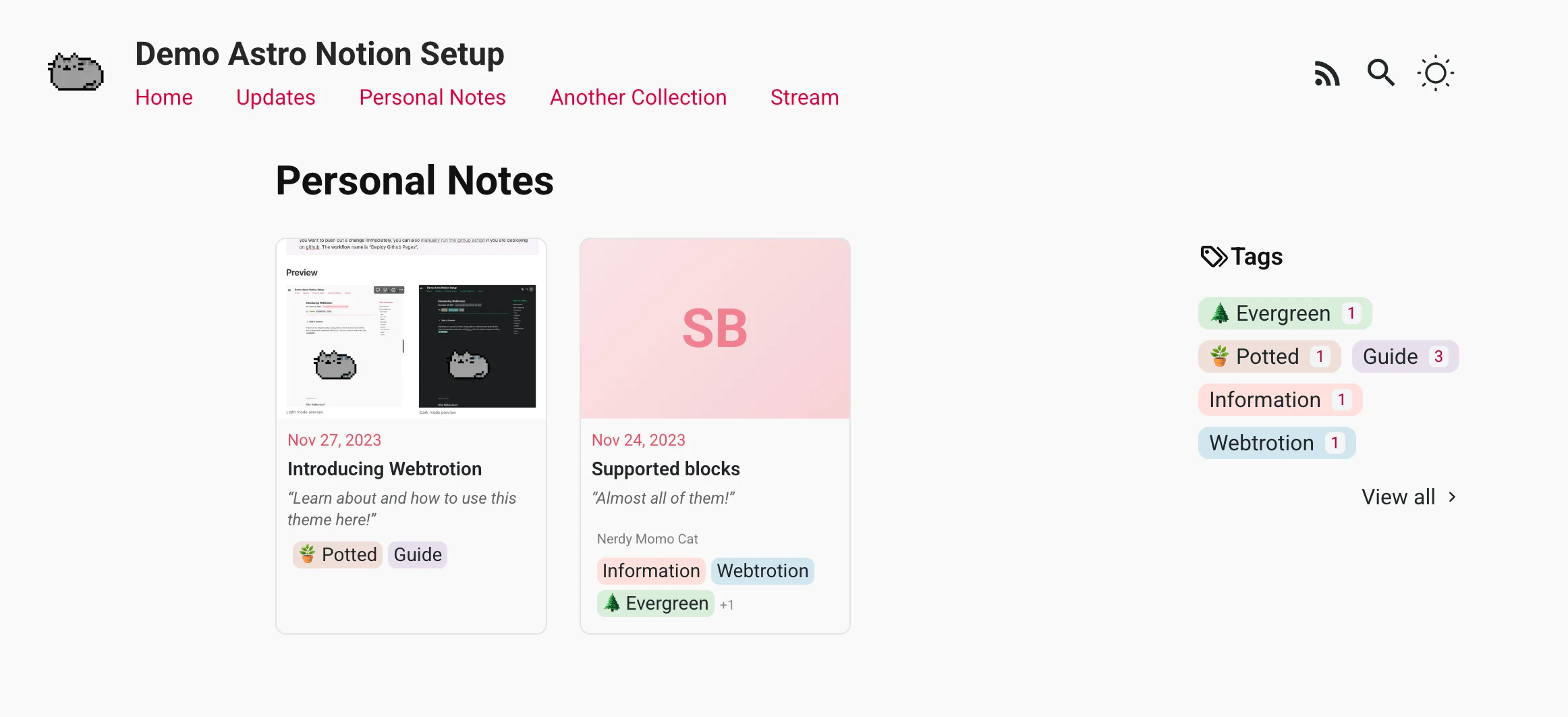
listing-view to gallery. It uses the featured image where available, and if there's no featured image, it generates a card in the accent color with the first letters of the title. Featured images get auto-optimized, and if they're originally WebP, they get converted to PNG for the OG image.Copy as Markdown
This feature does two things: first, it generates an index.md file alongside the index.html for every post, so at posts/my-post/ you get both the rendered HTML and a clean Markdown version, which means you can curl that Markdown file if you need to reference a post in Claude Code or use it for documentation or whatever (I don't know why you'd need this but just in case you do, it's there).
// <<shiki-transform>>
// constants-config.json5
{
  // === Block Rendering & Visual Display ===
  // Global settings for how Notion content blocks and media are displayed.
  "block-rendering": {
    // If true, clicking on an image will open it in a full-screen lightbox/modal view.
    "enable-lightbox": true,
    // If true, embedded content like tweets will span full width on smaller screens.
    "full-width-social-embeds": false,
    // If true, images from Notion will be optimized (converted to WebP, resized).
    // Warning: Can increase build time but helpful for site size.
    "optimize-images": true,
    // If true, all pages/posts are converted to markdown format and saved alongside HTML.
    "process-content-to-markdown": true,
  },
}
Second, it adds a floating copy button on every page except your home page, and clicking it copies the Markdown version straight to your clipboard, ready to paste into Claude or ChatGPT or whatever LLM you're using.
Turn on "process-content-to-markdown": true under block-rendering in constants-config.json5 (this is on by default), and during every build, Astro runs a markdown-exporter integration that grabs the .post-body HTML for each rendered page, removes scripts, popover templates, margin-note helpers, basically anything that wouldn't make sense in a Markdown mirror, rewrites links and image sources so they're absolute, and converts the result with Turndown plus GFM, folds in footnotes and citations from the cache, and slaps a YAML frontmatter block on top with title, slug, canonical URL, timestamps, tags, excerpt, author, external URL.
The exporter caches output in tmp/markdown-cache, so if you rebuild without touching a post, it reuses the previous .md and doesn't waste time regenerating the same content.
Why? Because I copy content into LLMs all the time. I have a changelog for a library and I ask "what do I need to change given this changelog?" and paste it into ChatGPT or Claude, and if I copy the HTML, important stuff might get lost because sections weren't expanded or popover content didn't get included or whatever. The Markdown export gives me a clean version with everything flattened out. I made the output as clean as I could, but if you find edge cases where the conversion is weird and you have a patch in mind, let me know.
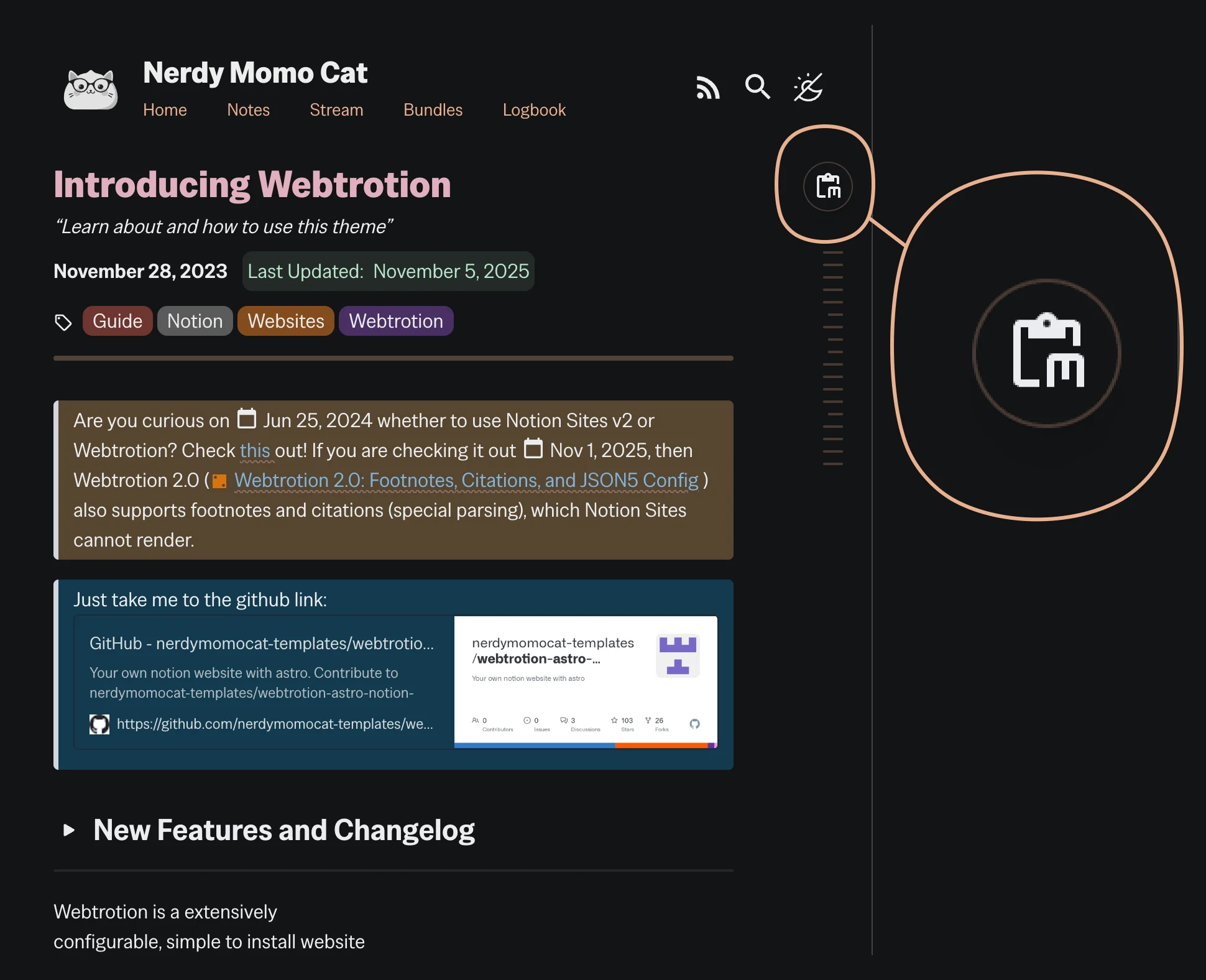
Cover Images as Hero Backgrounds
Set "cover-as-hero-background": true under theme in constants-config.json5, and when a post has a cover image, Webtrotion displays it as a low-opacity tinted background behind the hero section (title, date, tags), with the text staying readable thanks to an overlay.
// <<shiki-transform>>
// constants-config.json5
{
  // === Theme Customization ===
  // Customize the look and feel of your site, including colors and fonts.
  theme: {
    // Currently only the classic theme is supported.
    preset: "classic",
    // Define your site's color palette.
    // Colors MUST be in RGB format, with spaces between numbers (e.g., "255 255 255").
    colors: {
      bg: { light: "249 249 249", dark: "28 30 32" },
      text: { light: "34 39 42", dark: "255 255 255" },
      link: { light: "85 123 118", dark: "199 200 203" },
      accent: { light: "203 41 65", dark: "41 188 136" },
      "accent-2": { light: "17 17 17", dark: "237 237 237" },
      quote: { light: "203 41 65", dark: "205 254 183" },
    },
    // Just specify the font names - no URLs, no escaping needed!
    // Automatically loads weights [400, 500, 600, 700] and styles [normal, italic].
    "fontfamily-google-fonts": {
      // Main body/UI font - can be sans-serif OR serif.
      "sans-font-name": "Roboto",
      // Monospace font for code blocks.
      "mono-font-name": "Roboto Mono",
    },
    // Enable using the cover image as the hero background (with overlay for text readability).
    // When enabled, displays a low-opacity tinted banner behind title/date/tags.
    "cover-as-hero-background": true,
  },
}
This applies in two places: stream view when you're using full post previews, and individual post pages, so anywhere there's a hero section, the cover image can now be the background instead of just sitting there unused.
Cover images were always being read from Notion but never used. When this codebase started (forked from the original Astro Notion blog), the original developer was making use of them, so I figured I should too, and instead of just appending the image at the top like a banner, which looks kind of not my style, this provides a tinted background behind the hero section, which feels more editorial, like you're reading a magazine feature instead of a plain blog post.
The height is defined by the content length, not the image size, so it doesn't matter if your cover image is portrait or landscape or square, it just fills whatever space the hero content needs. The opacity gradient moves from 50-70% top to bottom, and the tint opacity itself is set to 0.4, so I tried to make sure everything stays readable even with busy background images, but if you pick a really chaotic cover image you might need to adjust things.
If a post doesn't have a cover image, the hero section renders normally (no cover, no background, simple as before).
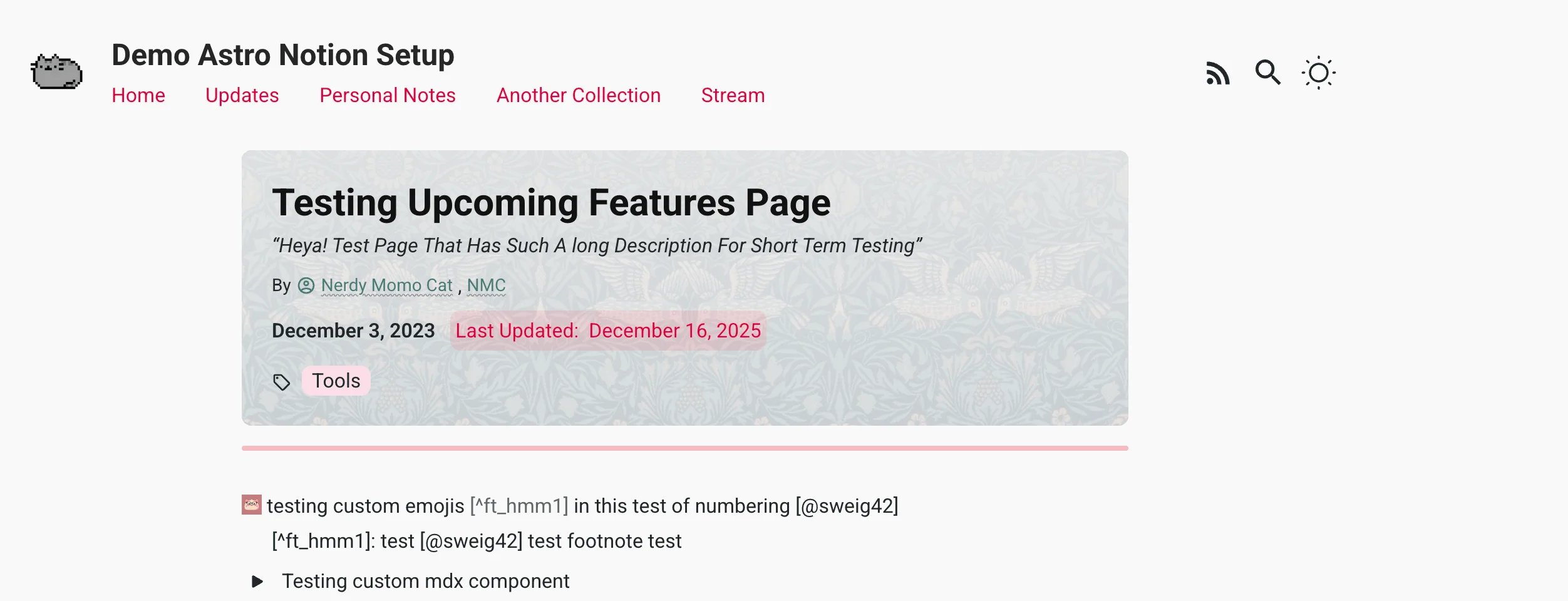
The above is an example of cover rendering on a normal post page and you can see that I tried my best to make the text still be pretty visible.
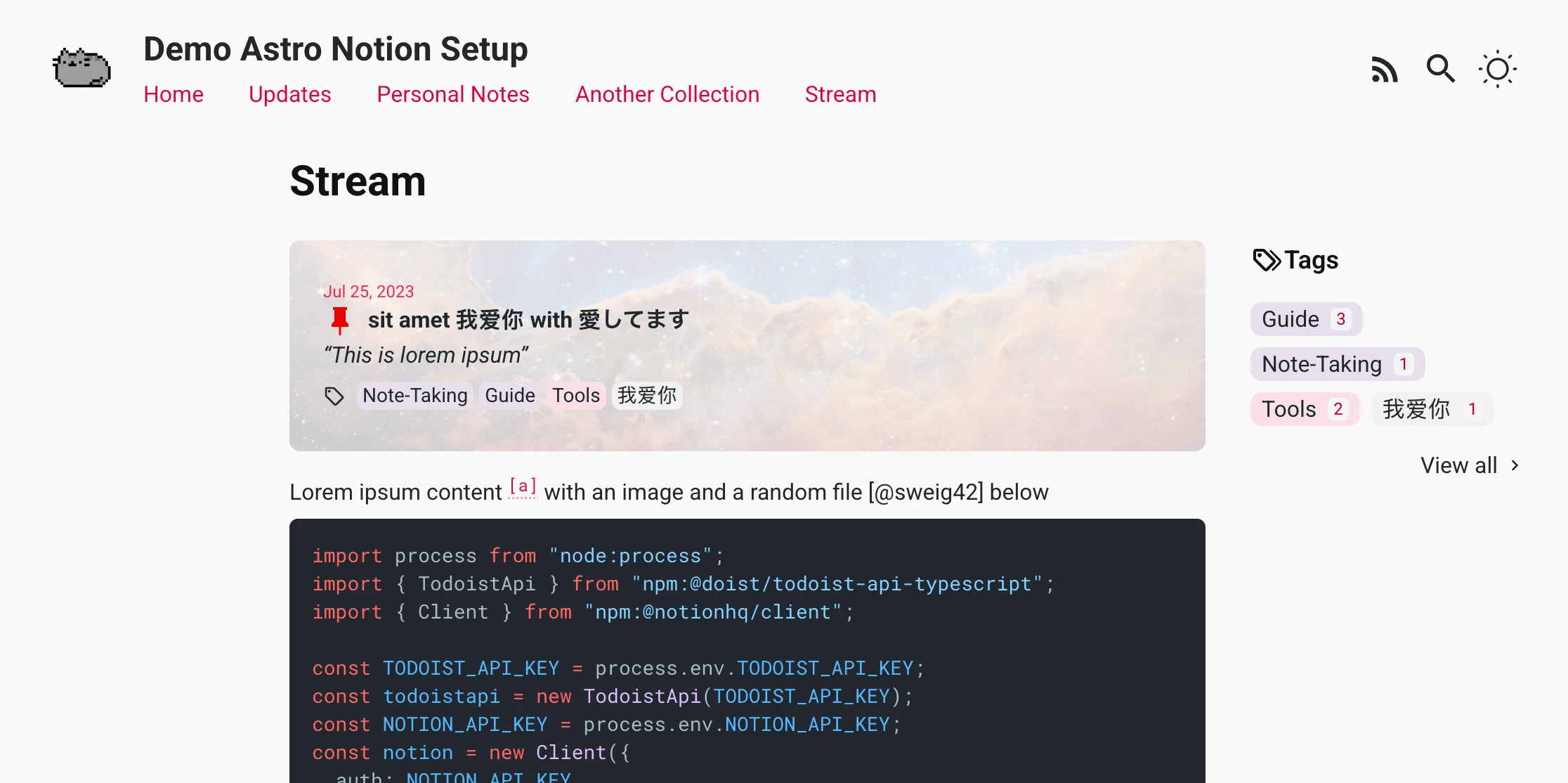
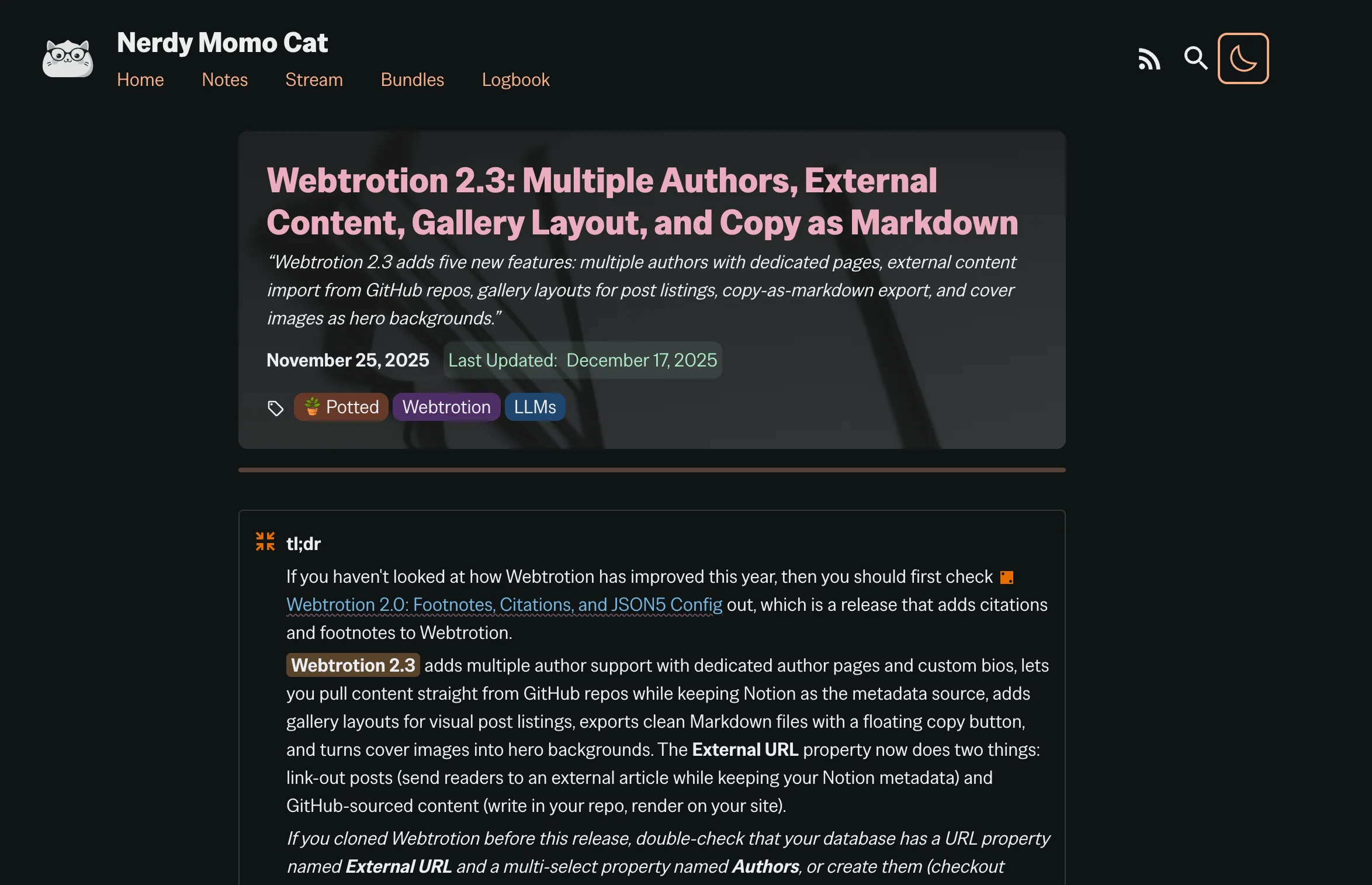
Optimizations and Pagespeed Improvements
After I was done with all these feature implementations, I ran pagespeed, and was disappointed to see a significant decline in scores. So, here are the things I did to bump it up.
![Pagespeed scores [^ft_pagespeed-only-care-about-mobile] on the left (before optimization) vs on the right (after optimization)](/_astro/image.DYF7nfzN_Z18aA4N.webp)
Cover Image Background Optimization
I wasn't planning to optimize this, but after implementing the basic cover background feature, I realized cover images load immediately and can be pretty large files, so I spent a couple more hours adding progressive loading.
I tried generating two versions: a tiny quality 5 placeholder that shows up instantly with just enough pixels to show color and rough composition, and a full quality 85 version that gets swapped in later. The swap happens on idle using requestIdleCallback, or falls back to a 250ms timeout after page load if the browser doesn't support it, so the full resolution image downloads in the background without blocking anything important. If the full image fails to load for any reason, the placeholder just stays there, which is fine because it's already visually similar enough that most people won't notice.
Then I ran PageSpeed and checked LCP, and it didn't work. The placeholder image wasn't being considered LCP — it was the full image.
So I tried multiple AI coding models, aka, Gemini, Claude, and Codex but none of them could solve the problem correctly. They even suggested checking the user agent and not swapping the image if it was Lighthouse or PageSpeed, which is extremely stupid. So I went back to Google like a caveman and found this:
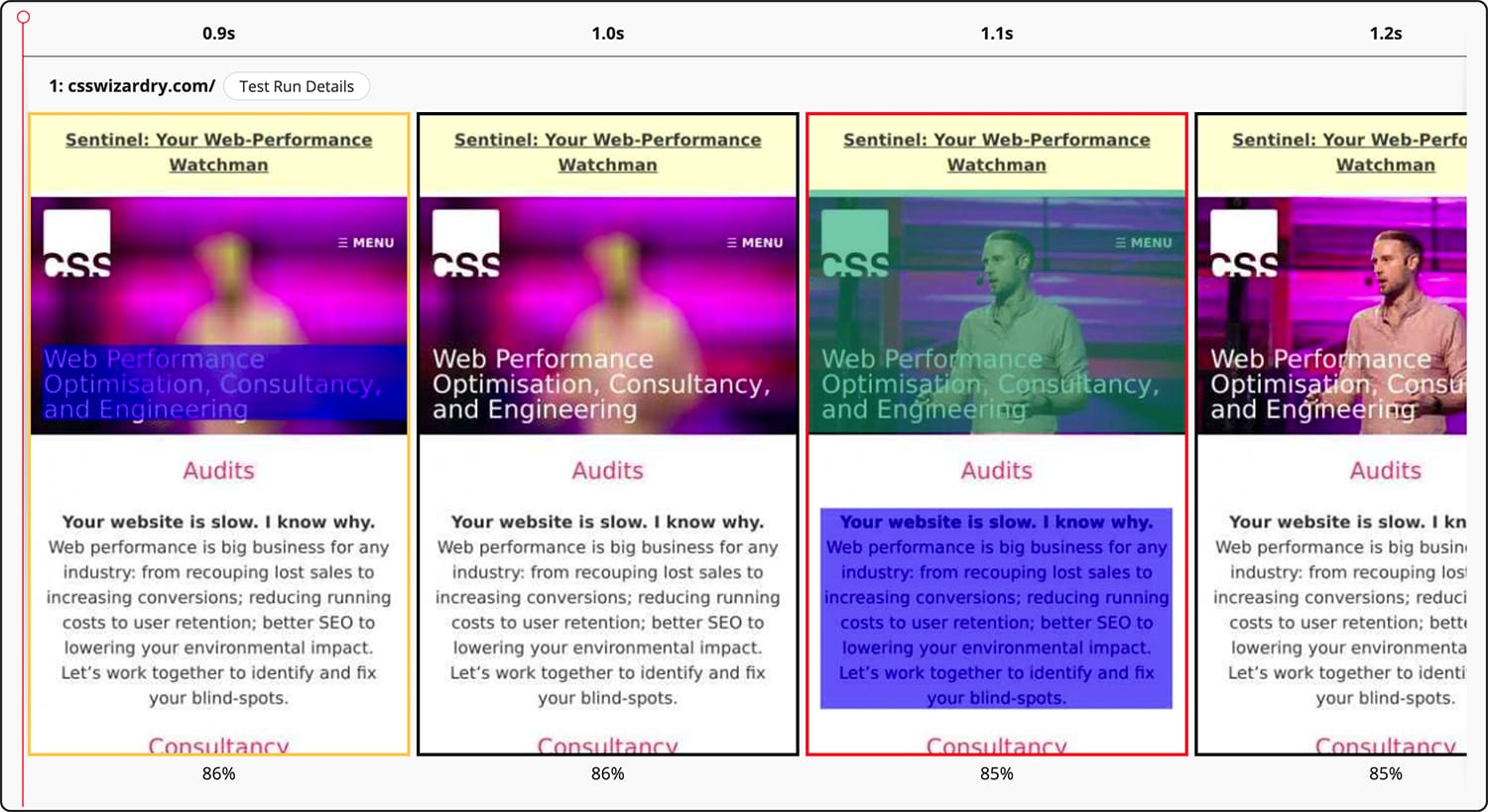
This is such a well-written article, and it boils down to two things. First, I was setting the quality to 5, but that's not a high enough threshold. The BPP threshold [^ft_what-is-bpp] should be at least 0.05 to count as LCP, so I set the quality to 20 or 25. Second, the strategy uses CSS's multiple backgrounds feature: high-res on top, low-res underneath. The browser loads both, but the low-res shows first and counts as LCP if it meets the BPP threshold. When the high-res loads, it automatically covers the low-res with no JavaScript needed.
And this worked! I decided to use 5 vs 65 qualities and they no longer show up in LCP!
[^ft_what-is-bpp]: From the link, the second restriction we need to get around is the bits per pixel (BPP) threshold announced in Apr 2023. Again, to stop people gaming the system, Chrome decided that only images of a certain quality (or entropy) will be considered as your LCP element. This prevents people using incredibly low quality images in order to register a fast LCP time.
Well, you might think that was the end of my problems, but apparently it wasn't because some of the Unsplash images decided to be at least 5MB and Notion does none of the optimization on its own end. So I decided to do some optimization myself, and even with quality set to 65, I was getting images ranging from 0.5MB (for the LQIP) to 1.5MB (for the full-quality image), which was diabolical for an image that loads immediately as LCP. Given that this site uses a middle-aligned layout with reasonable max-width for reading, I decided that 2100px max width is good enough for cover images. I didn't do this optimization for other images because someone might want to host their gallery on this or whatever. But for cover images, 100% I'm going to cap them at 2100 pixels wide, which accounts for 3x DPR on a ~700px layout (700×3 ≈ 2100).
Other Optimizations
Beyond cover images, I made several other performance improvements:
Notion icons are now cached: Before this, I was just linking out to Notion's page for default SVG icons, which meant the browser had to make external network requests to Notion's servers every time someone loaded a page with icons. Now I'm actually downloading and caching them locally during the build, so if you use the same icon across multiple posts, it only gets fetched once and then reused everywhere from your own domain. This shaves off a bunch of network requests for visitors and makes page loads faster, especially if you have a lot of pages with a lot of icons.
OG images cached for authors, tags, and collections: I was already caching OG images for posts, but author pages, tag pages, and collection pages were regenerating their OG images on every build even when nothing changed. Now all of them are cached properly, and I'm relying on the data source's last edited time to decide whether to regenerate those OG images or not. This makes incremental builds way faster since OG image generation with Satori isn't exactly quick.
Font format optimization: Astro's experimental font API was including both woff and woff2 formats by default when pulling from Google Fonts, but modern browsers support woff2 across the board now, and it's smaller and better compressed. I created a provider wrapper over the Google Font provider that defaults to only woff2 (unless no woff2 is found), cutting down on font file sizes and eliminating redundant font downloads.
Search CSS optimization: The pagefind CSS (the styles for the search functionality) was being included in the critical path where it didn't need to be unless someone was actually using search, which was blocking initial render. Now it only loads the first time someone clicks the site search button, presses ⌘+K, or uses a query (q) parameter, so most page loads don't pay that CSS cost at all and initial render is faster.
Cover background quality adjustment: After implementing the dual-image loading strategy for cover backgrounds, I realized the full-resolution image quality was set to 85, which was unnecessarily high for a background image that's tinted and partially obscured anyway. I dropped it to 65, which cut the file size significantly without any noticeable visual difference behind the tinted overlay. I also had to fix an issue where external cover images from Unsplash (which Notion uses as a cover provider integration) weren't being downloaded and optimized. The problem was that my code was checking if the file extension was an image format, but Unsplash URLs include query parameters like https://images.unsplash.com/photo-1663789049904-a1e1e216c829?ixlib=rb-4.1.0&q=85&fm=jpg&crop=entropy&cs=srgb, so the extension check was failing. I added special handling to look at the fm= (format) parameter in the query string to determine whether something can be downloaded as an image, if the url was from Unsplash, so now Unsplash cover images get pulled down during build and optimized properly.
Bluesky comments lazy loading: The Bluesky comments component was firing its API calls immediately when the custom element connected to the DOM, which meant it was happening during initial page load, if there was a cover image (because that takes long to load) even though the comments are way down at the bottom of the page. I had to fix this issue, and the solution now works in four stages: first, wait for page load by checking window.onload (or immediately if document.readyState is already complete); second, wait for the browser to be truly idle using requestIdleCallback (with a setTimeout fallback for browsers that don't support it); third, only then attach the scroll, mousemove, and other interaction listeners; and fourth, when the user finally interacts, trigger the initialization which starts the IntersectionObserver and the background fetch. This keeps comments from blocking initial render and lets the page become interactive faster.
KaTeX fonts: I ran into a font loading time problem with KaTeX fonts. I discovered that KaTeX now, as of two months ago provides an option to use swap as the default method. I asked multiple AI models to fix this, and they suggested complicated solutions but never thought to check for this simple option. I had to Google it myself, again, like a Neanderthal. Here's the GitHub issue that led me to the fix.
What's Next
This is the last release for 2025, and early next year whenever I hyperfocus on improving Webtrotion again, I'm going to be focusing on two things:
Theme Presets
I added a theme → preset variable in the config but it doesn't do anything yet. Planning to actually ship theme presets in 2026, right now I'm thinking Scholar (clean, academic, serif-heavy with good typography for long-form reading), Neon Techno (dark backgrounds, bright accent colors, that cyberpunk aesthetic), Pastel/Barbie (soft pinks and purples, rounded corners, very 2024), Playful (squiggles, hand-drawn borders, asymmetric layouts), and New Brutalist (raw, minimal, high contrast, no bullshit).
You can already customize colors, fonts, and cover-as-hero backgrounds in the config, so I'm trying to figure out what else should change per theme. Layout spacing? Border styles? Button shapes? Heading treatments? If you have opinions on this, open an issue or discussion on the repo.
Autogenerated "More Like This" Section
This one's pretty far out into the future, maybe before custom CMS but I don't know when it'll happen. The idea is to embed posts, rely on tags, and calculate a similarity score with weighted importance on tags, title, and embedded content, then auto-add a "More Like This" section at the bottom of each post.
The mechanics of doing this on a static site are interesting and frustrating. I really do not want to ask for another key to be set up in the Github environment, and then I would need to spend time especially figuring out caching and making it work with GitHub Actions. I want to try implementing it just to see how good it is from an LLM/small embedding model perspective and whether it's even possible, and to see if it would actually be valuable for the kind of people who use Webtrotion.
Maybe a Custom CMS?
This is pure speculation, but maybe by next year there's a custom CMS that covers everything I use Notion for and I can de-associate this project from Notion entirely. The dream is being able to use terminal apps like Claude Code to write in Markdown without actually writing long-form Markdown myself, buttons should be able to compose in rich text, something that gives me Notion's WYSIWYG editing but stores everything as clean Markdown that LLMs can edit directly.
Maybe coding LLMs get powerful enough to build something like that just for me, but realistically that's 2028 territory, not 2026, so I'm not holding my breath.
I'm planning to write a post about why I keep using Notion as a CMS despite all its quirks and limitations, and once I've written it, I'll link it here too.
For now, enjoy the some sprinkled new features and the "bring your own content" workflow. Happy holidays and happy token burning on your cute-sy (and fun!) side projects 😃.
Footnotes
- [a]Well I am laughing Dec 17, 2025, because I decided to optimize loading cover images, so I ended up spending 2 more hours on that. 🤷♀️
- [c]You see how there is an icon in this case? It is because I have set a URL for this author using a shortcode and that icon links out to the URL where is the name links to the author page.
- [d]This feature only works for markdown front matter and isn't comprehensive, so I recommend using Notion-based metadata instead
- [e]I could have used a shortcode in the collection description to do this but I think that is a waste of time and that much configurability goes against the feeling of what webtrotion is.
- [f]I only care about mobile pagespeed scores because desktop scores didn’t ever slip below 95, given how optimized astro already is!